
nl:symmetry:option_save
This is an old revision of the document!
Table of Contents
Menukeuze "Bewaren"
Details
 De menu-optie “Bewaren” werkt op twee manieren, afhankelijk van de initiële situatie:
- Wanneer u een bestaande job opent en wijzigt, en vervolgens Bewaren kiest, dan wordt de gewijzigde versie van het bestand onmiddellijk bewaard onder dezelfde bestandsnaam.
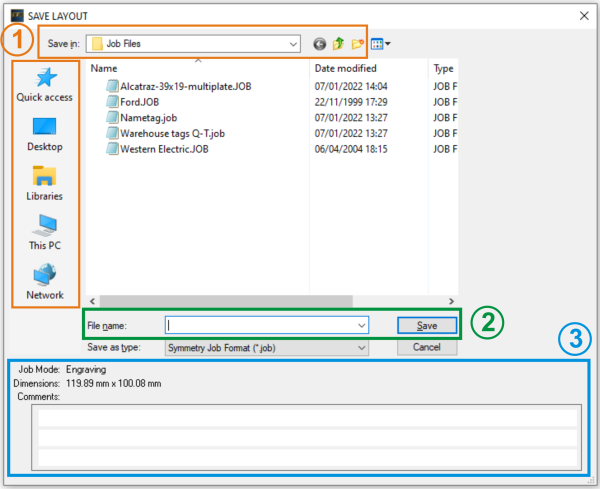
- Wanneer u een nieuwe job gecreëerd hebtAfter creating a new job from scratch, dan zal Symmetry een Save Layout venster openen, zoals hiernaast afgebeeld. In dat venster hebt u meerdere keuzemogelijkheden ter beschikking:
- (1) U kiest de Locatie waar u uw bestand wil opslaan. De standaard map om jobs in Symmetry te bewaren heet “Job files” en is terug te vinden onder de Symmetry-map (C:\Symmetry\Job files), maar u kan navigeren door alle mappen op uw computer of netwerk en eender welke map kiezen die voor u toegankelijk is. U kan daar zowel het vervolgkeuze menu voor gebruiken dat u opent met het pijltje naar de mapnaam (“Job Files” in ons voorbeeld), of via één van de iconen aan de linkerkant: “Snelle Toegang”, “Bureaublad”, “Bibliotheken” enz. 1)
- (2) Enter the file name of your choice for your newly created job file.
- (3) Add any details you might want to remember later on in the 3-line Comments field at the bottom. The information you give here will help you retrieve or recognize your files when you want to consult them later on.

Notes
- When you want to save an already existing job under the same name, but with adjusted comments or in another folder, choose the Save as option.
- The “Save” and “Save as” options are very similar to the “Save Project As” option. With Save Project As, all files that are in the .job file are copied to one directory. This way, when Symmetry will open a job file later on, it doesn’t have to “find” these files.
Imagine you send a .job file to another PC. If that .job contains a clipart or font that is only on your original PC, then the other PC will not be able to open and include it. But, if you save the project, you will send all the files that are used in the .job file to the new PC and it will be able to open it to execute the job.
1)
Please note that the list of icons on the left can be different, depending on your own computer and/or network configuration.
nl/symmetry/option_save.1651838345.txt.gz · Last modified: 2022/05/06 13:59 by jan.vangelder


