
fr:symmetry:option_save
This is an old revision of the document!
Table of Contents
Option de menu "Sauver"
Détails
 Cette option de menu fonctionne de deux manières. La manière dont elle fonctionne dépend de la situation de départ:
- Quand vous ouvrez un travail existant et vous le modifiez ensuite, l’option “Sauver” fera en sorte que le fichier est sauvegardé sous le même nom.
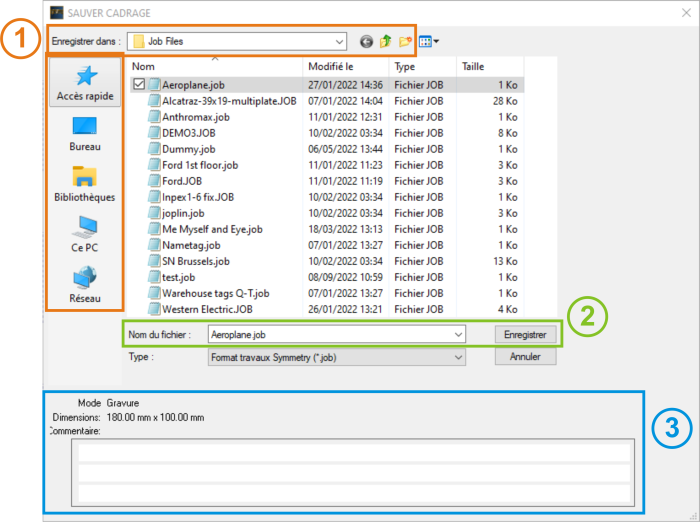
- Si vous créez un travail en partant de l’option Nouveau travail ou en passant par la fenêtre de Démarrage rapide, vous pouvez sauvegarder le travail par l’option “Sauver”. Symmetry ouvrira la fenêtre Save Layout, comme elle montrée dans l’image à droite. Cette fenêtre vous offre plusieurs options:
- (1) Vous spécifiez l’Emplacement où vous voulez sauvegarder votre fichier. Le dossier standard pour sauvegarder des travaux s’appelle “Job files” et est un sousr-épertoire du dossier Symmetry (C:\Symmetry\Job files), mais vous pouvez parcourir tous les dossiers de votre ordinateur ou même de votre réseau et sélectionner n’importe quel dossier. Pour ce faire, vous pouvez utiliser le menu déroulant à côté du nom du dossier (“Job Files” dans notre exemple), ou en faisant usage des icônes sur le bord gauche de votre écran: “Accès rapide”, “Bureau”, “Bibliothèques” etc.1)
- (2) Introduisez le nom de fichier de votre choix pour le fichier que vous venez de créer.
- (3) Ajoutez des informations qui vous pourraient utiles dans l’avenir dans la case Commentaires à trois lignes en bas. Les infos que vous introduisez maintenant vous aideront à retrouver ou reconnaître vos fichiers quand vous en avez besoin ultérieurement.

Remarques
- Quand vous voulez sauvegarder un travail existant sous le même nom, mais avec des nouveaux commentaires, prenez plutôt l’option de menu Sauver comme.
- The “Save” and “Save as” options are very similar to the “Save Project As” option. With Save Project As, all files that are in the .job file are copied to one directory. This way, when Symmetry will open a job file later on, it doesn’t have to “find” these files.
Imagine you send a .job file to another PC. If that .job contains a clipart or font that is only on your original PC, then the other PC will not be able to open and include it. But, if you save the project, you will send all the files that are used in the .job file to the new PC and it will be able to open it to execute the job.
1)
Notez que la liste des icônes peut être différente, selon la manière dont votre ordinateur et votre réseau informatique sont configurés.
fr/symmetry/option_save.1663139216.txt.gz · Last modified: 2022/09/14 09:06 by jan.vangelder


