
fr:symmetry:option_save
This is an old revision of the document!
Table of Contents
Option de menu "Sauver"
Détails
 Cette option de menu fonctionne de deux manières. La manière dont elle fonctionne dépend de la situation de départ:
- Quand vous ouvrez un travail existant et vous le modifiez ensuite, l’option “Sauver” fera en sorte que le fichier est sauvegardé sous le même nom.
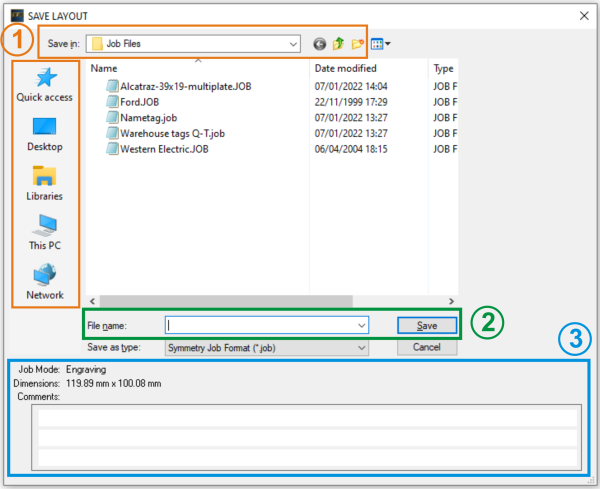
- Si vous créez un travail en partant de l’option Nouveau travail ou en passant par la fenêtre de Démarrage rapide After creating a new job from scratch, Symmetry will open the Save Layout window, as is shown in the example on the right. In that window, you have several options at your disposal:
- (1) Specify the Location where you want to store your job file. The standard folder for saving jobs in Symmetry is the “Job files” folder under Symmetry (C:\Symmetry\Job files), but you can browse through all folders on your computer or even network and pick any folder you like. To do so, you can either use the drop-down arrow next to the folder name (“Job Files” in our example), or through any of the icons on the left-hand side: “Quick access”, “Desktop”, “Libraries” etc.1)
- (2) Enter the file name of your choice for your newly created job file.
- (3) Add any details you might want to remember later on in the 3-line Comments field at the bottom. The information you give here will help you retrieve or recognize your files when you want to consult them later on.

Notes
- When you want to save an already existing job under the same name, but with adjusted comments or in another folder, choose the Save as option.
- The “Save” and “Save as” options are very similar to the “Save Project As” option. With Save Project As, all files that are in the .job file are copied to one directory. This way, when Symmetry will open a job file later on, it doesn’t have to “find” these files.
Imagine you send a .job file to another PC. If that .job contains a clipart or font that is only on your original PC, then the other PC will not be able to open and include it. But, if you save the project, you will send all the files that are used in the .job file to the new PC and it will be able to open it to execute the job.
1)
Please note that the list of icons on the left can be different, depending on your own computer and/or network configuration.
fr/symmetry/option_save.1663080971.txt.gz · Last modified: 2022/09/13 16:56 by jan.vangelder


